
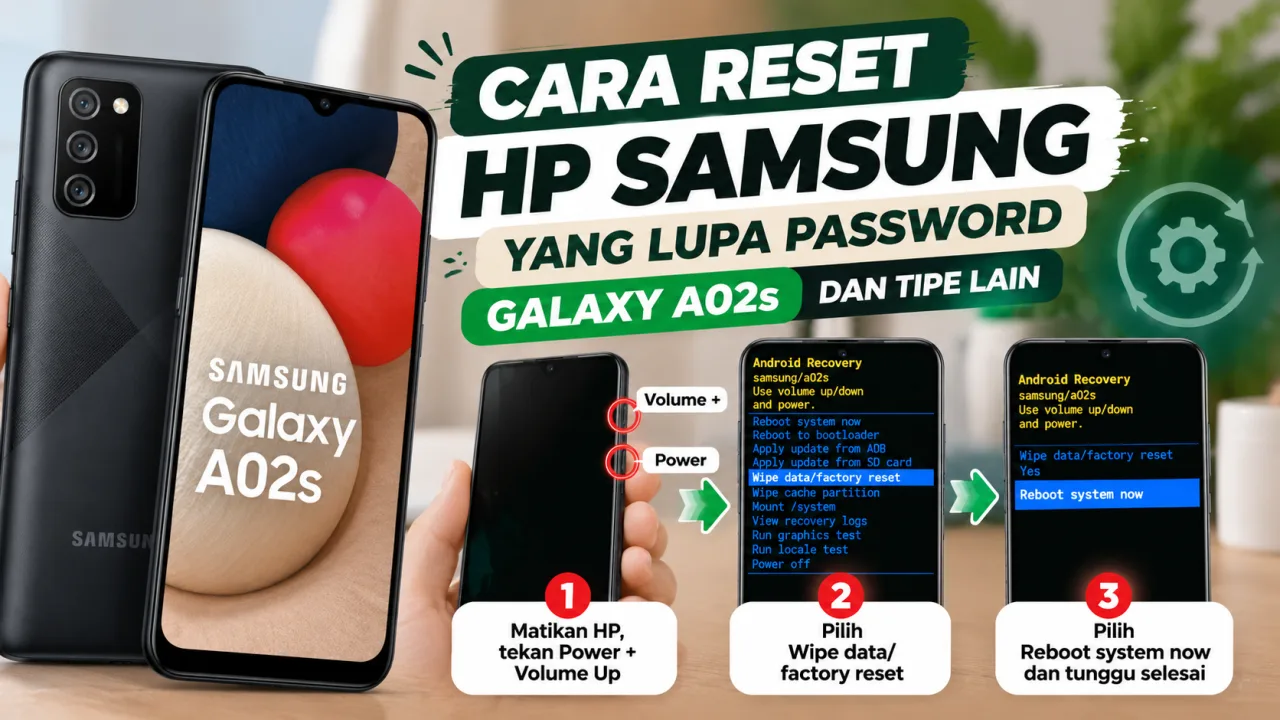
Forgetting the password, PIN, or screen lock pattern of a Samsung phone can make it difficult for users to access their device. One way to resolve this is by performing a factory reset through the Recovery Mode menu. This method can be used on the Samsung Galaxy A02s and a number of other Samsung models, but the button combinations and how to enter the recovery menu may vary depending on the device type and software version.
In this guide, the discussion starts with the Samsung Galaxy A02s. Before following the steps, it is important to understand that a factory reset will erase data stored in the internal memory, including apps, photos, videos, and settings that have not been backed up.
Things to Know Before Resetting a Samsung Phone
A factory reset restores the phone to its original settings just like when it was first used. Therefore, perform this process only when truly necessary.
- Make sure the phone battery is still sufficient or charge it first.
- Remember the Google account previously used on the device.
- If possible, make sure important data has been backed up.
- Understand that a reset does not always remove Google account verification after the device is turned back on again.
After a reset via buttons, the Google Factory Reset Protection (FRP) feature may ask for the email address and password of the Google account previously synchronized on the phone. If you forgot the account, recover it through official Google services before proceeding.
How to Factory Reset Samsung Galaxy A02s When You Forgot the Password
Here are the steps to enter Recovery Mode on the Samsung Galaxy A02s. Make sure the device truly belongs to you or you have permission from the owner.
- Turn off the Samsung phone. Make sure the device is turned off. If the phone cannot be turned off because it is locked, you may need to wait for the battery to run out first.
- Press the Power and Volume Up buttons. After the phone turns off, press and hold both buttons simultaneously.
- Release the Power button when the phone vibrates. Keep holding the Volume Up button to continue the process of entering Recovery Mode.
- Wait until the Android Recovery menu appears. Once the recovery menu is visible on the screen, release the Volume Up button.
- Select Wipe data/factory reset. Use the Volume Up and Volume Down buttons to move through the menu options.
- Confirm data deletion. Press the Power button to select the menu. If a confirmation such as Factory data reset appears, select that option and press Power.
- Wait for the reset process to finish. Do not press buttons randomly during the process.
- Select Reboot system now. After data deletion is complete, use the volume buttons to select this menu and press Power.
- Wait for the phone to turn back on. The first boot process after a reset can take a few minutes.
- Follow the initial setup instructions. Choose the language, connect to Wi-Fi, and then follow the on-screen instructions. If prompted, enter the Google account previously registered on the device.
Note: On the Galaxy A02s, the combination of the Power and Volume Up buttons is generally used to enter Recovery Mode when the device is off. However, the results may vary according to the device variant and software.
What If Samsung Does Not Enter Recovery Mode?
On a number of newer Samsung Galaxy models, the Recovery Mode menu may require a USB connection to a computer or another compatible device. If the Power and Volume Up button combination does not work, try the following steps:
- Turn off the phone completely.
- Connect the phone to a computer using a USB cable that supports data transfer, not a cable only used for charging.
- Press and hold the Volume Up and Power buttons according to the combination used on that model.
- Release the buttons when the logo or Recovery Mode menu appears, according to the device response.
- If the recovery menu successfully opens, select Wipe data/factory reset and confirm data deletion.
- After the process is complete, select Reboot system now.
The step of using a USB cable does not apply to all Samsung types. The button combinations and connection requirements can differ based on the model and software version. If this method does not work, check the official Samsung guide for the phone type you are using.
Can a Factory Reset Remove a Google Password?
A factory reset erases user data and local settings, but does not guarantee the device is free from ownership verification. If there was previously a Google account on the phone, the FRP security system may ask the user to log in using that account after a reset.
If you forgot your Google password, use the official Google account recovery page. If you cannot recover the account, contact an official Samsung service center with proof of device ownership. Avoid using services that promise unofficial FRP removal.
Can Data Be Recovered After a Phone Is Reset?
Data stored only in the internal memory and without a backup generally cannot be recovered through the initial setup process. However, photos, contacts, and files previously backed up to a Google account or other storage services may be restored after you successfully log into the relevant account.
Therefore, before performing a reset, consider whether there is still important data that has not been backed up. If such data is extremely important, consider assistance from an official service center before wiping the entire contents of the device.
The method to reset a Samsung phone when you forgot the password can be done through Recovery Mode by selecting Wipe data/factory reset, then Reboot system now. On the Samsung Galaxy A02s, the Power and Volume Up combination is generally used to open the recovery menu. On some other models, a USB cable connection to a computer may be required.
Remember that a factory reset will erase internal memory data and the device may ask for old Google account verification after the process is complete. Make sure you understand these consequences before performing a reset.