
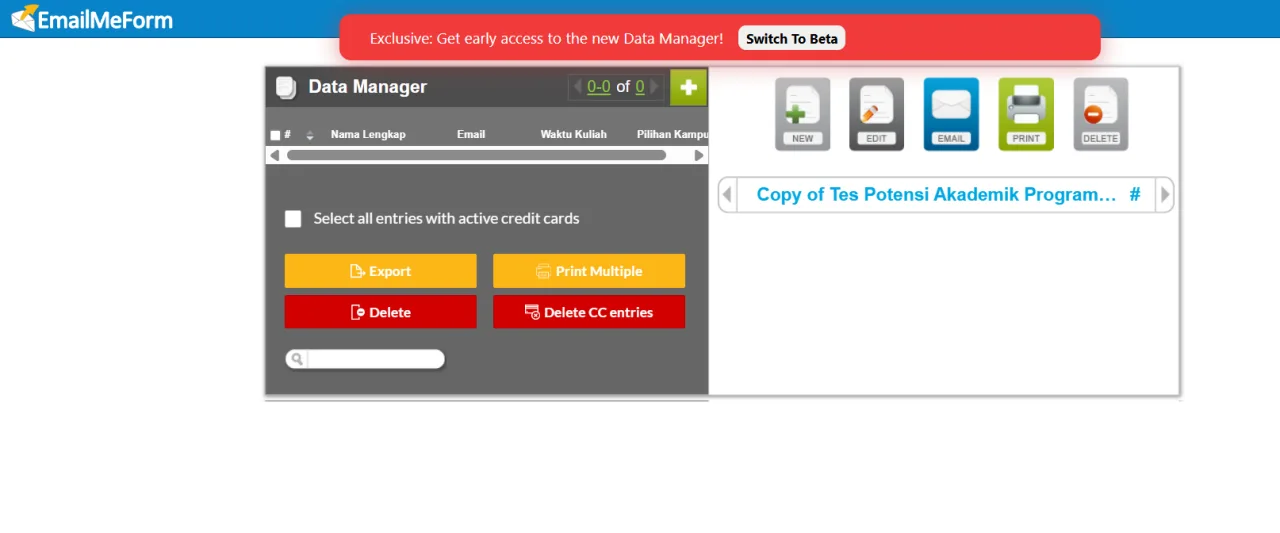
Did you accidentally click the Beta button in EmailMeForm, causing the Data Manager layout to change and feel uncomfortable to use? If you are experiencing the same issue, there is a method you can try to revert the EmailMeForm layout to the old version without having to create a new form.
This article is written based on direct experience and testing on EmailMeForm via the Google Chrome browser. In the tested interface, a button to switch directly back to the old layout after moving to the Beta version was not found. Therefore, one method you can try is clearing the EmailMeForm site data through the browser settings.
How to Revert EmailMeForm to the Old Layout
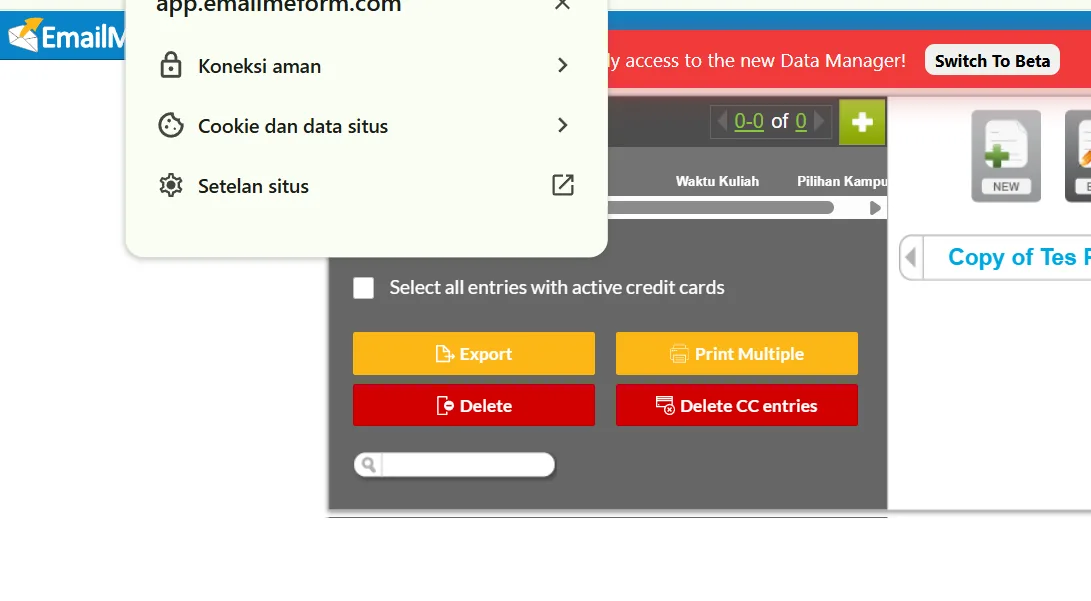
If you have already switched to the Beta view and want to use the previous interface again, follow these steps. This guide uses Google Chrome in Indonesian. Menu names may differ slightly depending on the browser version you are using.
1. Open EmailMeForm Site Information
First, open the EmailMeForm page as usual. Make sure you are on the official EmailMeForm website and the Data Manager page is open.
Then, click the site information or control icon to the left of the site address in the browser address bar. This icon is located on the left side of the EmailMeForm URL, as seen in the guide screenshot.
2. Select Cookies and Site Data
Once the site information menu opens, look for the Cookies and site data option. Click this menu to open the site storage settings used by EmailMeForm in the browser.
At this stage, you will see options to manage site data stored on the device.
3. Open Site Data Management
Next, select the menu to manage site data on the device. In the Chrome view used in testing, this option is located within the Cookies and site data settings section.
This menu is used to view and manage local data stored by websites in the browser. Make sure you select the settings for EmailMeForm site data, rather than carelessly deleting all browser data.
4. Clear EmailMeForm Site Data
After entering the site data management page, select the option to clear the stored site data. If the browser displays a list of sites, make sure the deleted data is indeed related to EmailMeForm.
Attention: Clearing site data may delete login cookies, display preferences, and other local information. You may need to log back into your EmailMeForm account once the process is complete. If available, it is best to choose EmailMeForm-specific data deletion rather than all site data stored in the browser.
5. Click Done and Reload the Page
After the site data is cleared, click the Done button to close the settings. Then, return to the EmailMeForm page and refresh or reload the page.
If the layout changes were saved in the browser local data, this step can help EmailMeForm reload the previous interface. Based on testing conducted, this method can be tried to restore the old Data Manager layout.
Will EmailMeForm Form Data Be Deleted?
This is important to understand before following the guide. Clearing cookies and site data in the browser is not the same as deleting forms or entries stored in an EmailMeForm account.
Browser site data generally includes local information such as login sessions, cookies, and certain preferences. Meanwhile, form data stored in online service accounts is usually managed by that service's system.
Therefore, clearing site data is not intended to delete forms or entries stored in the account. However, do not assume all data is definitely safe under all conditions. Make sure important forms and entries are indeed saved in the account, and avoid clicking the Delete button in the Data Manager if your only goal is to change the layout.
What If EmailMeForm Still Shows the Beta Version?
If the old layout has not returned after clearing site data, do not immediately clear other browser data. Try these few verification steps:
- Make sure the cleared data comes from the correct EmailMeForm site.
- Close the EmailMeForm tab, then reopen the site.
- Log back into your account if the browser prompts for a login.
- Check if an option to switch layouts is available on the page or account settings.
- If you are still using the Beta view, contact EmailMeForm support to ask whether the old interface is still available for your account.
Please note that the site layout can also be controlled by account settings or changes from the service provider side. Therefore, clearing site data does not guarantee that all users can return to the old layout.
Do Not Panic, Data Remains Safe and Is Not Deleted
Returning EmailMeForm to the old layout after accidentally pressing the Beta button can be attempted by clearing EmailMeForm site data through Google Chrome settings, then reloading the page.
This method is based on experience and testing on the interface used in this guide. Results may vary depending on the browser version, account, and interface changes from EmailMeForm.
Before clearing site data, make sure you can log back into your account and understand that cookies and local preferences may also be deleted. If this method fails, use official EmailMeForm support to confirm whether the option to return to the old layout is still available.