
QR codes are increasingly used in various daily activities. From sharing website addresses, granting WiFi access, storing contact information, to directing someone to a WhatsApp page, everything can be done using a QR code.
Interestingly, anyone can create their own QR code for free without having to install additional apps on their phone. The process simply involves using a browser like Google Chrome or an online QR code generator service.
For business owners, students, workers, or regular internet users, QR codes can help share information faster. Other people simply need to scan the code using a phone camera to open the link or read the information stored inside.
So, how do you create a free QR code for various needs? Here is a complete guide that you can try via Android, iPhone, or computer.
What Is a QR Code?
QR code stands for Quick Response Code, which is a two-dimensional code that can store information and be read using a camera or a specialized scanner.
Unlike regular barcodes which typically consist of lines, QR codes feature a pattern of black and white squares. They can store various types of information such as website addresses, text, phone numbers, contact data, and WiFi network information.
This technology is widely used because the scanning process is fast and users do not need to type addresses or information manually.
How to Create a Free QR Code for Website Links
One of the most common uses of QR codes is sharing website addresses. This method is suitable for business owners, bloggers, online stores, or anyone who wants to direct others to a specific page.
1. Prepare the Link to Be Made Into a QR Code
First, determine the website address you want to share. For example, an online store page, business profile, article, registration form, or social media page.
Make sure the address is correct and can be opened before creating the QR code.
2. Open a QR Code Generator Site
Open a browser on your phone or computer, then visit one of the free QR code generator services, for example:
Both services can be used to create QR codes from website addresses. Check the feature options and terms of service before using them.
3. Enter the Website Address
Select the QR code type for URL or website. After that, paste the prepared address into the available column.
Make sure there are no typos in the address so that the QR code directs users to the correct page.
4. Generate and Download the QR Code
Click the button to create or generate the QR code. Once the code appears, choose the available image format, such as PNG or SVG, and save it to your device.
The QR code can be used on posters, business cards, brochures, product packaging, or digital promotional materials.
How to Create a QR Code for WiFi
In addition to website addresses, QR codes can also be used to share WiFi network access. This method is quite practical for homes, offices, cafes, restaurants, or businesses that provide internet for visitors.
By scanning the code, compatible devices can recognize network information without having to manually type the WiFi name and password.
Here are the steps:
- Open a QR code generator service that provides a WiFi option.
- Select the WiFi QR code type.
- Enter the network name or SSID.
- Enter the WiFi password.
- Select the network security type according to your router settings.
- Generate the QR code and download the image.
- Test scanning the code using another phone to ensure the information is readable.
Please note that WiFi QR codes store network information, including the password. Do not share them openly if the network is intended only for personal use.
How to Create a WhatsApp QR Code
A WhatsApp QR code can be used to make it easier for customers or others to contact the owner without having to save the phone number first.
One way to create it is by using a WhatsApp link with the following format:
https://wa.me/6281234567890
Replace those numbers with your destination WhatsApp number using the country code. For Indonesian numbers, use the prefix 62 and drop the leading 0 from the number.
For example, if the WhatsApp number is 081234567890, the link becomes:
https://wa.me/6281234567890
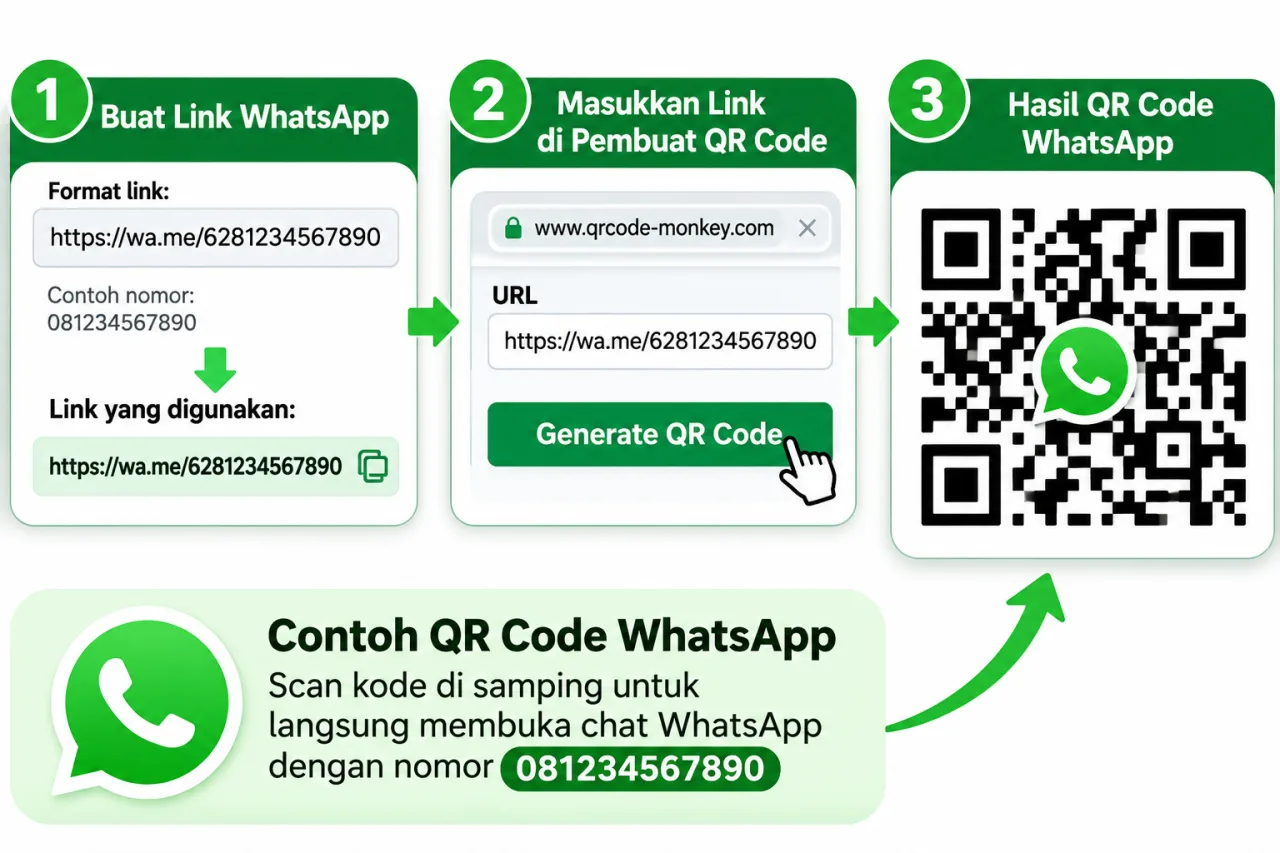
Once the link is created, enter that address into a QR code generator service just like in the previous steps. The result can be used on business cards, brochures, product catalogs, or business profiles.
How to Create a QR Code via Android and iPhone
Android and iPhone users do not need to use a computer to create QR codes. The entire process can be done through the browser available on your device.
The method is quite simple:
- Open Google Chrome, Safari, or another browser.
- Visit a QR code generator site.
- Select the type of information you want to input.
- Paste the link or enter the required data.
- Click the Generate or Create QR Code button.
- Download the QR code image to your device.
Once saved, the QR code image can be shared directly via WhatsApp, email, or social media.
How to Create a QR Code on a Laptop or PC
If you are using a laptop or computer, the process is not much different. Users just need to open a QR code generator site via a browser.
- Open a browser on your laptop or PC.
- Go to a QR code generator service.
- Select the QR code type according to your needs.
- Enter the information or destination address.
- Adjust the appearance of the code if available.
- Generate the QR code and download the result.
The PNG format is suitable for general use, while SVG can be chosen if you need an image that can be scaled up for design or printing purposes.
Tips to Make QR Codes Easy to Scan
After successfully creating a QR code, do not use it immediately without testing. There are several things to consider so that the code can be scanned easily.
- Make sure the QR code pattern looks clear and not pixelated.
- Use sufficient color contrast between the code and the background.
- Do not cover important parts of the QR code with large images or logos.
- Leave empty space around the code.
- Test scanning using several types of phones.
- Make sure the destination link is still active and safe.
Can Free QR Codes Be Used Forever?
QR codes created for free can be used long-term, but this depends on the type of code and the service used.
Static QR codes store information directly inside the code pattern. If it contains a website address, that address will not change unless the user creates a new code. As long as the destination page is still active, the QR code can still be used.
Meanwhile, dynamic QR codes usually use an intermediary service that allows the destination address to be changed or scanning statistics to be monitored. These features may have usage limits, expiration periods, or subscription fees depending on the service provider's policies.
If you only need a QR code to share website links, WiFi, or WhatsApp, a static code is usually enough.
Creating a free QR code is actually very easy and does not require additional apps. Users simply open a QR code generator service via a browser, input the required information, and download the result.
QR codes can be utilized for various purposes, ranging from sharing website links, WiFi access, to connecting customers to WhatsApp. Before using or printing them, make sure the code has been tested so it can be scanned properly.
By utilizing QR codes, the process of sharing information becomes more practical, fast, and easily done via mobile phone or computer.